

You press the power button, grab your coffee, come back… and Windows is still loading. Sound familiar ? A slow-booting computer is probably one of the most annoying things in daily computing life. And honestly, most articles on the topic just tell you to “clean your registry” or “buy more RAM” without explaining anything.
So let me cut to the chase. In my experience fixing machines for friends, family, and a few small businesses, slow startups almost always come down to 7 real causes. Not 50. Just 7. And the good news ? You can solve most of them yourself in an afternoon. If you’d rather hand it over to someone who’ll do it properly, a local repair shop like https://www.siel-informatique.com can handle the diagnosis and the fix without you having to lift a finger – sometimes that’s just the smarter call when you don’t have time to mess around.
Let’s go through them one by one.
1. Too many programs launching at startup

This one. This is the number one cause, and I’d bet money on it before even looking at your PC. Every time you install something – Spotify, Discord, Adobe Reader, your printer software, that one game launcher – there’s a good chance it sneakily adds itself to the startup list. After 2 or 3 years of installing stuff, you can easily have 30+ programs trying to launch the second Windows boots. Result ? Your disk and CPU are basically suffocating before you even see the desktop.
How to fix it :
- Press Ctrl + Shift + Échap to open the Task Manager.
- Go to the Startup tab (or “Startup apps” on Windows 11).
- Sort by “Startup impact”.
- Disable anything marked “High” that you don’t absolutely need at boot.
Don’t be scared, disabling something here doesn’t uninstall it. You can still launch the app normally when you want. Honestly, on most computers I’ve cleaned, this single step cuts boot time in half. Sometimes more.
2. You still have a mechanical hard drive (HDD)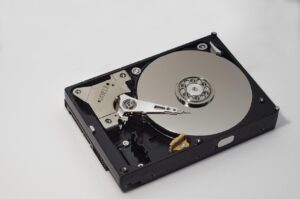
OK, this is going to sound blunt but I’ll say it anyway : if your PC still runs on an HDD in 2026, that’s your problem. Full stop.
A traditional hard drive reads data at maybe 100-150 MB/s on a good day. A basic SATA SSD does 500+ MB/s, and an NVMe SSD blows past 3000 MB/s. The difference at boot isn’t subtle – we’re talking about going from 2 minutes to 15 seconds.
How do you check what you have ? Open the Task Manager, click Performance, look at “Disk 0”. It’ll say SSD or HDD right there.
If it says HDD and your machine is otherwise decent (i5 or better, 8 GB of RAM minimum), don’t throw the computer away. Just swap the disk. A decent 500 GB SSD costs around 40-50 € these days. Clone your old drive with a free tool like Macrium Reflect Free or Clonezilla, and you basically have a new PC. I’ve done this on a 10-year-old laptop and it became usable again. Seriously.
3. Not enough RA
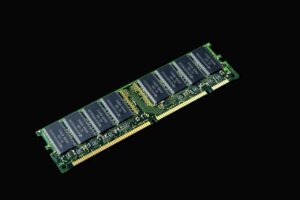
RAM (random access memory, the short-term memory your PC uses to juggle open apps) is the next big bottleneck. If you’ve got 4 GB, I’m sorry to say it but in 2026 that’s painful. Windows 11 alone eats around 3 GB just sitting there doing nothing.
The sweet spot today :
- 8 GB: bare minimum for office work and browsing.
- 16 GB: comfortable for most users.
- 32 GB: gamers, creators, multi-tasking maniacs.
Adding RAM on a desktop is genuinely one of the easiest upgrades. On a laptop it depends on the model – some have soldered RAM (looking at you, modern ultrabooks), some have one or two SO-DIMM slots you can access by unscrewing the back panel. Check your model on Crucial’s compatibility tool before buying anything.
4. Windows updates running in the background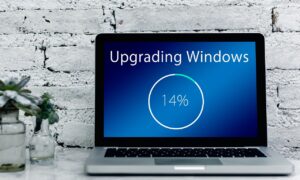
Have you ever noticed your PC being weirdly slow for the first 5-10 minutes after boot ? And then it suddenly… works ? Yeah. That’s often Windows Update, or its friends : antivirus scan, OneDrive sync, indexing service.
This isn’t really a “fix” because most of these are legitimate processes.
But two things you can do :
- Schedule Windows Update at a time you’re not using the PC (Settings > Windows Update > Advanced options > Active hours).
- Don’t shut down your PC for days on end – let it install updates from time to time, otherwise they accumulate and every boot turns into a marathon.
I know the temptation. You hit “Shut down” instead of “Restart and install” for 3 weeks straight, and then one day Windows decides now is the moment and your 30-second boot becomes a 12-minute ordeal. Classic.
5. Fast Startup messing things up
Funny one, this. Windows has a feature called Fast Startup that’s supposed to speed up boot times by hibernating part of the system instead of fully shutting down. In theory, great. In practice ? On a lot of machines it causes the opposite – weird slow boots, driver issues, peripherals not detected properly.
If your PC used to boot fast and now drags, try disabling it :
- Control Panel > Power Options > “Choose what the power buttons do”.
- Click “Change settings that are currently unavailable”.
- Uncheck “Turn on fast startup”.
Reboot once normally to flush the hibernation file. See if it helps. On half the machines I’ve tested this on, it does. The other half, no difference. Worth a shot though.
6. Drivers, BIOS, and the messy stuff underneath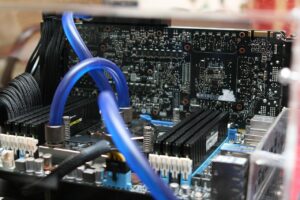
This one’s a bit more technical but stay with me. Drivers – those little programs that let Windows talk to your hardware – can become outdated, corrupted, or just plain wrong after a major Windows update. An old SATA controller driver or a broken GPU driver can absolutely tank your boot time.
What to do without breaking anything :
- Open the Device Manager (right-click on the Start menu).
- Look for any yellow exclamation marks. Those are devices with driver issues – fix those first.
- For your graphics card, grab the latest drivers directly from Nvidia, AMD, or Intel’s website. Not from random “driver updater” tools, please. Those are mostly scams.
BIOS updates can also help in rare cases, especially on laptops with chronic boot delays. But warning : only do this if you know what you’re doing. A failed BIOS update can brick your machine. If you’re unsure, leave it alone or get someone competent to do it.
7. Malware, or a dying disk

I’m grouping these because they’re both the “last resort” suspects. If you’ve tried everything above and nothing changed, look here.
Malware doesn’t always show itself with flashy popups anymore. Modern malware likes to sit quietly, mining crypto in the background, sending your data somewhere shady, eating your CPU and disk at every boot. Run a full scan with Windows Defender (it’s actually decent now) and a second-opinion scan with Malwarebytes Free.
Two different engines, two chances to catch something.
A dying disk is more sneaky. Even an SSD can fail. Signs : random freezes, longer-than-usual boot times that keep getting worse, occasional “disk error” messages. Download CrystalDiskInfo (it’s free, lightweight, and trustworthy). It’ll show you the SMART status of your drives. If it says anything other than “Good”, back up your data now and plan a replacement.
I had a client whose laptop took 4 minutes to boot. CrystalDiskInfo flagged the SSD as “Caution” with 1500+ reallocated sectors. Two weeks later, the disk was dead. We caught it just in time. So please, take 30 seconds to check.
So, what should you do first ?
If I had to give you a priority order – based on what fixes the most machines the fastest – here it is :
- Clean up the startup programs (Task Manager).
- Check if you have an HDD and consider upgrading to an SSD.
- Check your RAM amount.
- Run a malware scan and CrystalDiskInfo.
- Disable Fast Startup if boot times got worse recently.
- Update or roll back drivers.
- Let Windows install pending updates properly.
Honestly, 80% of “my PC is slow at startup” cases I see are solved by steps 1 and 2 alone. The rest is fine-tuning.
And if all this sounds like a lot – or if you’ve tried the basics and your PC is still crawling – there’s no shame in calling a pro. Sometimes a 30-minute diagnosis by someone who knows the machine inside out saves you hours of frustration and a wrong upgrade decision. Either way : don’t put up with a slow PC for years. A computer that takes 3 minutes to boot isn’t normal. It’s a problem with a solution. And now you know where to look.
